
बिबरन
Right Click Ban is a lightweight WordPress plugin that helps you protect your website content from casual copying and theft. It disables the right-click context menu, blocks text selection, prevents image dragging, and stops common keyboard shortcuts — all without slowing down your site.
If you have ever found your blog posts, photos, or product descriptions copied onto another website, you know how frustrating content theft can be. Right Click Ban gives you a simple way to fight back. Once activated, it adds a layer of protection that deters the vast majority of people who try to copy your content using everyday browser actions.
Why Website Owners Trust Right Click Ban
Just install it, toggle the features you want, and your content starts being protected immediately.
Here is what makes it different:
- Zero performance impact – Uses lightweight inline JavaScript with no external libraries. Your PageSpeed score stays the same.
- Works on every browser – Tested on Chrome, Firefox, Safari, Edge, and Opera, including mobile browsers on iOS and Android.
- Admin-friendly – Protection only applies to your visitors. You and your team can still use your site normally.
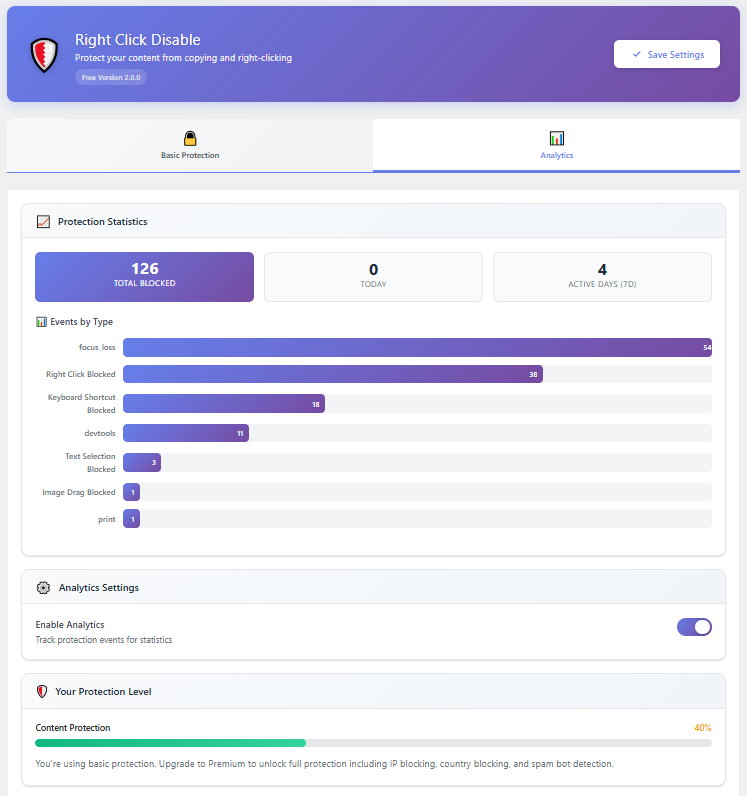
- Built-in analytics – See exactly how many copy attempts, right clicks, and shortcut events are being blocked on your site.
How It works – Tutorial Video
Who Is This Plugin For?
- Photographers and artists who want to stop visitors from downloading or dragging their images.
- Bloggers and writers who need to protect original articles from being copied and republished.
- Online course creators who want to make it harder for people to steal their lessons and materials.
- Business owners who publish proprietary information, pricing strategies, or product descriptions they do not want competitors to steal.
- Anyone running a WordPress site who wants a simple, effective content protection solution without paying for a premium tool.
Free Features
Right Click Ban includes a generous set of features in the free version — enough for most websites to feel confident their content is being actively protected.
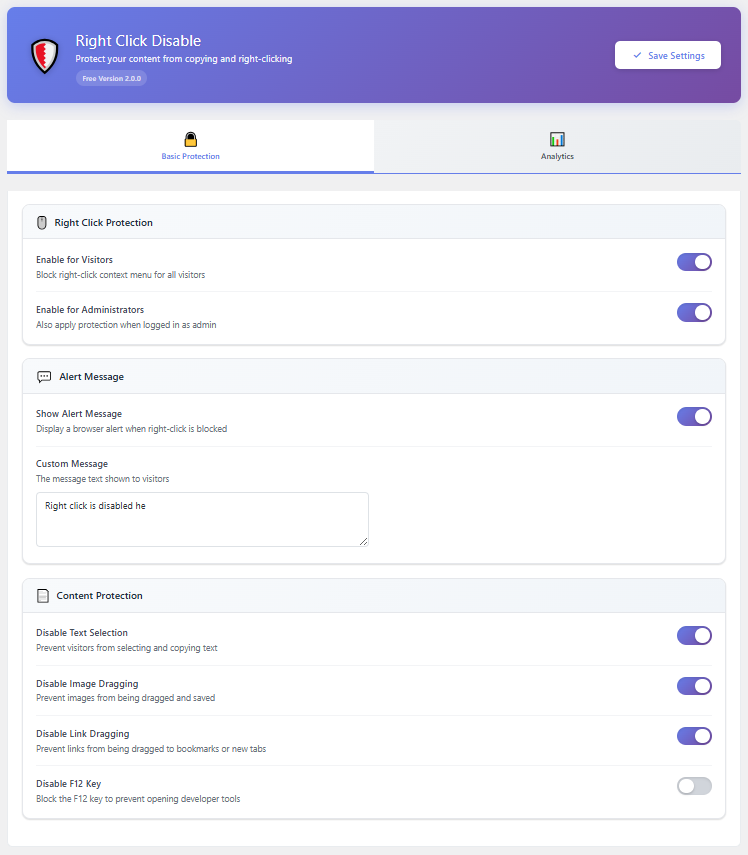
🛡️ Right Click Protection
Blocks the browser context menu so visitors cannot use “Save Image As,” “Copy,” “View Page Source,” or other right-click options. You can show a custom message when someone tries, or block it silently.
🔒 Text Selection Blocking
Prevents visitors from highlighting and copying your text using click-and-drag selection. Great for protecting long-form content like blog posts and articles.
🖼️ Image Drag Prevention
Stops users from dragging your images to their desktop, another tab, or into a file manager to save them.
🔗 Link Drag Prevention
Prevents hyperlinks from being dragged to bookmarks, browser tabs, or external applications.
⌨️ Keyboard Shortcut Blocking
Blocks Ctrl+C (Copy), Ctrl+U (View Source), and other commonly used keyboard shortcuts that expose your content. F12 developer tools access is also blocked.
📱 Mobile Protection
Enable or disable protection specifically for mobile and tablet visitors. Long-press context menus on touch devices are blocked automatically.
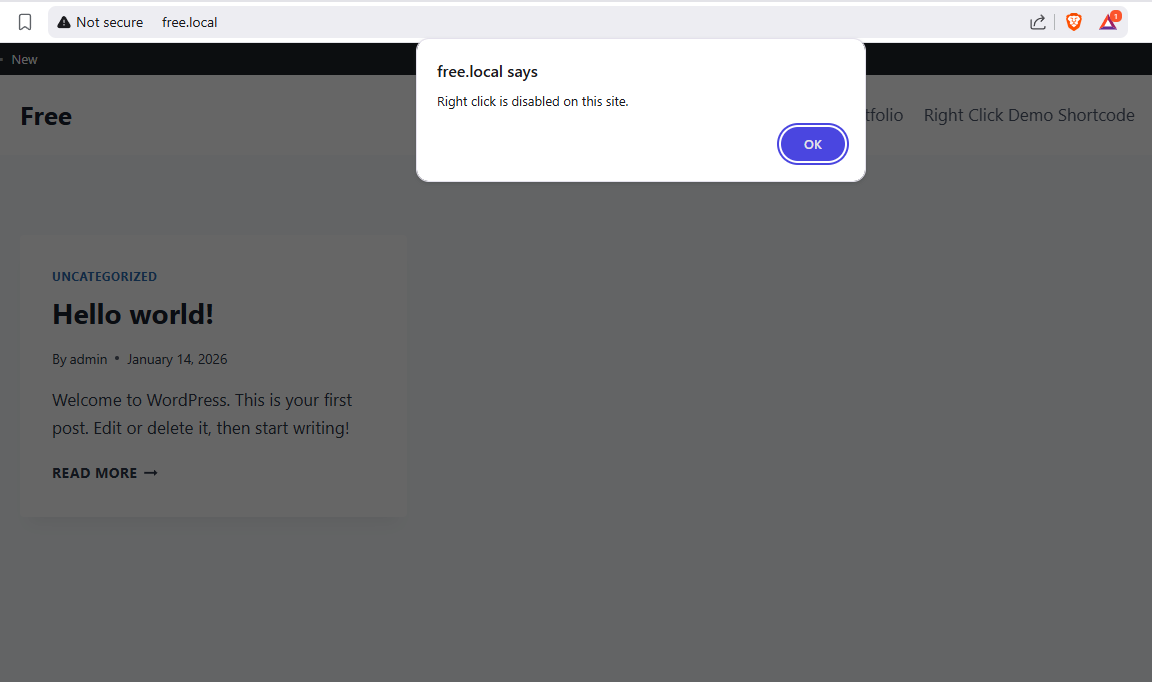
🔔 Custom Alert Message
Choose to display a modern, styled modal popup when someone tries a blocked action. Customize the message text to inform your visitors politely.
📊 Protection Analytics
Built-in analytics dashboard shows you how many right-click events, copy attempts, and shortcut triggers have been blocked — in total and broken down by day.
🛠️ Admin Control
Choose whether logged-in administrators should also see protection or browse normally. By default, admin access is unrestricted.
📈 Daily Block Counter
A real-time counter in the settings header shows you how many events were blocked today and in total.
🗑️ Full Data Control
Reset your analytics statistics at any time, and optionally delete all plugin data automatically when you uninstall.
🔐 Privacy Ready
Right Click Ban integrates with the WordPress Privacy Policy system and includes a suggested privacy policy text you can add to your site. No data is sent to external servers. GDPR friendly.
How Right Click Protection Works
Right Click Ban uses clean, standards-compliant JavaScript that runs only on the frontend of your website. When a visitor tries to right-click, select text, drag an image, or use a blocked keyboard shortcut, the browser action is intercepted and cancelled before it can complete.
There are no heavy scripts, no external API calls, and no server-side processing. Everything runs in the browser, keeping your site fast and your server resources free.
Need More Advanced Protection?
If you need enterprise-grade content protection, the Pro version takes things much further:
See the Pro version in action: Live Demo
- Custom Modal Popup – Replace browser alerts with 7 beautifully designed popup themes (Light, Dark, Glass, Neon, Sunset, and more) with 4 animation styles.
- Full Keyboard Shortcut Blocking – Block 18+ shortcuts including Ctrl+V, Ctrl+A, Ctrl+S, Ctrl+P, Ctrl+Shift+I, and all Mac Command equivalents.
- Developer Tools Detection – Detect when DevTools is opened and respond with a warning, content hiding, or automatic redirect.
- Focus Loss Detection – Detect tab switching and window minimizing to catch screenshot extensions. Respond with alerts, page blurring, overlays, or redirects.
- Print Protection – Block Ctrl+P and JavaScript print calls with a custom message.
- Image Watermark – Add automatic CSS text watermarks to all images with 6 position options and adjustable opacity.
- Advanced Mobile Protection – Configurable long-press duration, gesture detection, screenshot detection with blur protection, and Force Touch blocking for iOS.
- IP Address Blocking – Block specific IPs or IP ranges using CIDR notation with custom block messages.
- Country Blocking – Block visitors from 250+ countries and territories with a searchable list, bulk selection, and per-region analytics.
- Spam Bot Blocking – Automatically block 40+ known malicious bots, scrapers, and content thieves with configurable rate limiting.
- Page Exclusions – Disable protection on specific pages and posts with a searchable selection interface.
- Role-Based Protection – Control protection per WordPress user role (Administrator, Editor, Author, Contributor, Subscriber).
- Per-Page Settings – Override global settings on individual pages or posts using a meta box in the editor.
- Advanced Analytics – 7-day activity charts, event breakdown by type, browser and device stats, threat feed, and CSV export.
Screenshots

Installation
Automatic Installation (Recommended)
- Log in to your WordPress dashboard.
- Go to Plugins Add New.
- Search for “Right Click Ban”.
- Click Install Now, then Activate.
- Navigate to Right Click Ban in your admin sidebar.
- Toggle the protection features you want and click Save Settings.
That is it. Your content is now protected.
Manual Installation
- Download the plugin ZIP file from WordPress.org.
- In your dashboard, go to Plugins Add New Upload Plugin.
- Select the ZIP file and click Install Now.
- Activate the plugin and configure your settings from the Right Click Ban menu.
FAQ
-
How do I disable right click on my WordPress site?
-
Install and activate Right Click Ban, then go to the plugin settings and turn on “Disable Right Click For Visitors.” That is all it takes. From that moment, visitors will no longer see the right-click context menu on any page of your site.
-
Will disabling right click affect my SEO rankings?
-
No. Search engines like Google, Bing, and others crawl your site’s source code directly. They do not interact with your pages the way a human visitor does, so right click protection has zero impact on your search rankings, indexing, or crawl performance.
-
Can I still right-click on my own site as an administrator?
-
Yes. Right Click Ban includes an admin control toggle. When enabled, logged-in administrators can browse your site without any restrictions. Protection only applies to your visitors.
-
Does this plugin slow down my website?
-
Not at all. Right Click Ban uses a few kilobytes of inline JavaScript — no external libraries, no jQuery dependencies for frontend protection, and no additional HTTP requests. Your page load speed stays exactly the same.
-
Does this work on mobile phones and tablets?
-
Yes. The plugin blocks long-press context menus on touch devices running iOS and Android. You can also enable or disable mobile protection independently if you prefer to only protect desktop visitors.
-
Can someone still copy my content even with this plugin?
-
Let us be honest: no browser-based protection can stop a truly determined and technically skilled person. However, Right Click Ban effectively blocks the methods that 99% of casual copiers use — right-clicking, text selection, Ctrl+C, dragging images, and viewing source. It serves as a strong deterrent for everyday content theft.
-
Can I block only specific actions instead of everything?
-
Absolutely. Every feature works independently. You can enable just image drag protection without touching right-click blocking, or block only keyboard shortcuts while leaving text selection alone. Mix and match based on your needs.
-
How do I customize the alert message that visitors see?
-
Go to the Right Click Ban settings, enable “Show Alert Message,” and type your custom message in the text field. The plugin will show this message in a modern styled popup whenever a visitor tries a blocked action.
-
Can I disable the alert popup entirely?
-
Yes. Simply turn off the “Show Alert Message” option. All blocked actions will be silently cancelled without any notification to the visitor.
-
What keyboard shortcuts does this plugin block?
-
The free version blocks Ctrl+C (Copy), Ctrl+U (View Source), and F12 (Developer Tools). The Pro version extends this to 18+ shortcuts including Ctrl+V, Ctrl+A, Ctrl+S, Ctrl+P, Ctrl+Shift+I, and their Mac equivalents.
-
Is this plugin compatible with caching plugins?
-
Yes. Right Click Ban works alongside all major caching plugins including WP Super Cache, W3 Total Cache, WP Rocket, LiteSpeed Cache, and others. Since the protection runs client-side in the browser, caching does not interfere with it.
-
Does this plugin work with page builders like Elementor or Divi?
-
Yes. Right Click Ban operates at the browser level and does not conflict with any page builder. It works with Elementor, Divi, Beaver Builder, WPBakery, Gutenberg, and any other builder.
-
Is this plugin GDPR compliant?
-
Yes. Right Click Ban does not send any data to external servers. All analytics data is stored locally in your WordPress database. The plugin also includes a built-in privacy policy suggestion that you can add to your site’s privacy page. You can delete all stored data at any time.
-
Can I track how many times someone tried to copy my content?
-
Yes. The built-in analytics dashboard shows you the total number of blocked events, a daily breakdown, and statistics by event type (right-click, copy attempt, keyboard shortcut, etc.). This helps you understand how often your content is being targeted.
-
I found my content copied on another site. Can this plugin help?
-
Right Click Ban works as a preventive measure — it makes it significantly harder for people to copy your content in the first place. If your content has already been copied, consider filing a DMCA takedown notice with the hosting provider of the offending site. Going forward, keeping Right Click Ban active will reduce future theft.
-
How do I get support if I need help?
-
You can visit the WordPress.org support forum for the free version. For Pro support, visit awplife.com.
समीक्षा


Contributors & Developers
“Right Click Ban – Disable Right Click & Content Protection” is open source software. The following people have contributed to this plugin.
Contributors


“Right Click Ban – Disable Right Click & Content Protection” has been translated into 1 locale. Thank you to the translators for their contributions.
Translate “Right Click Ban – Disable Right Click & Content Protection” into your language.
Interested in development?
Browse the code, check out the SVN repository, or subscribe to the development log by RSS.
Changelog
2.2.1
- Date: 15 July, 2026
- UX: Added visual loading indicators on settings and documentation screens matching Pro version styles.
- Bug Fix: Fixed CSS not loading on “Our Plugins” and “Our Themes” dashboard screens caused by admin menu hook sanitization mismatch.
- Bug Fix: Resolved loader freeze issue on ecosystem pages caused by jQuery window load event race condition.
- Performance: Added transient caching for WordPress.org API queries on “Our Themes” page, reducing load times.
2.2.0
- Date: 18 May, 2026
- Security: Hardened all administrative actions with capability checks and nonces.
- Security: Implemented wp_unslash() for data integrity across all settings.
- Privacy: Added “Delete Data on Uninstall” option for full user data control.
- Ethics: Removed hostile debugger traps from frontend protection logic.
- UX: Added dynamic “Protection Level” calculation in settings header.
- UX: Added “Reset Statistics” feature with secure confirmation dialog.
- Performance: Centralized asset enqueuing in main plugin file via standard hooks.
- Performance: Implemented conditional asset loading for Modal features to reduce page weight.
- Performance: Added static caching for plugin settings to minimize database queries.
- Architecture: Switched to official wp_is_mobile() standard for reliable device detection.
- I18n: Fully translatable AJAX responses and added base translation template (.pot).
- Privacy: Integrated official WordPress Privacy Policy content suggestions.
2.1.0
- Date: 28 March, 2026
- New: Added Extended Keyboard Protection (Ctrl+C and Ctrl+U blocking).
- New: Added Mobile Protection toggle for granular control.
- New: Added Daily Block Counter in the settings dashboard header.
- New: Added modern, premium modal popup protection message (replaces browser alerts).
- Hardened: Enhanced DevTools detection with timing-based protection.
- Hardened: Added instant protection triggers on browser blur/focus loss.
- Improved: Modernized settings UI with better mobile responsiveness and premium aesthetics.
2.0.1
- Date: 15 February, 2026
- Fixed: Custom alert message not displaying on the frontend.
- Fixed: F12 key blocking not working due to settings key mismatch.
- Fixed: Image drag still blocked when only link drag protection was enabled.
- Added: Ctrl+Shift+I blocking alongside F12 for developer tools prevention.
- Improved: Switched to JavaScript-based blocking for text selection, image drag, and link drag to enable analytics tracking.
- Improved: Event handling with capture phase listeners for more reliable protection.
- Security: Added proper input sanitization and escaping for database queries.
- Code: Removed discouraged load_plugin_textdomain function.
- Code: Quality improvements for WordPress coding standards compliance.
2.0.0
- Date: 2 February, 2026
- Major update with completely rewritten codebase.
- New: Modern settings interface with tabbed navigation.
- New: F12 key blocking for developer tools prevention.
- New: Protection analytics to track blocked events.
- New: Admin control for applying protection to administrators.
- Improved: Text selection blocking with CSS-based solution.
- Improved: Image and link drag prevention.
- Improved: AJAX-based settings save with toast notifications.
- Improved: Browser compatibility, especially Safari.
- Added: Documentation page with feature overview.
- Performance: Optimized for faster loading.
1.1.0
- Added show or hide alert option.
1.0.0
- Initial release.