
Screenshots
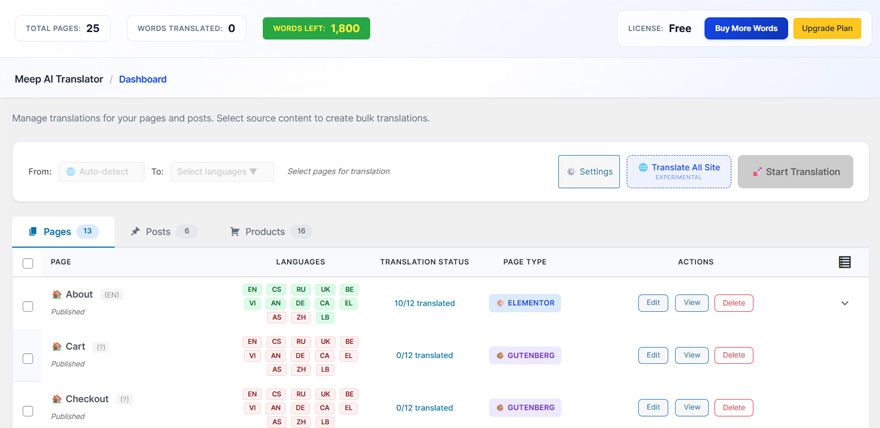
Plugin main translation interface — translate any page with one click. 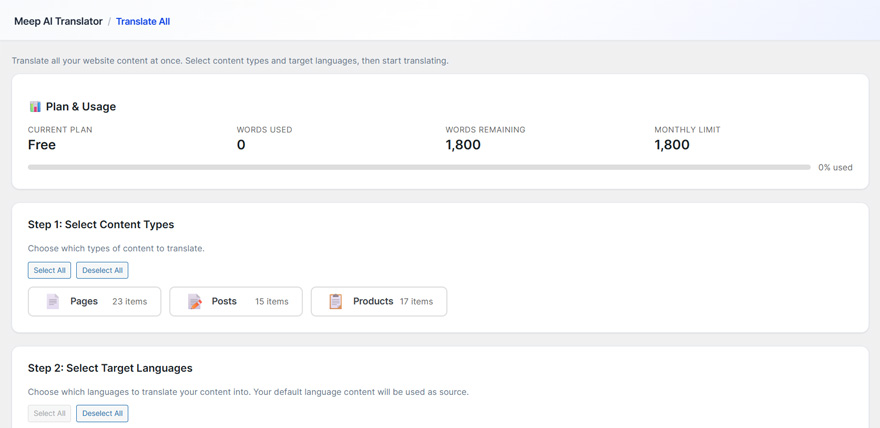
Translate All interface — bulk translate multiple pages at once. 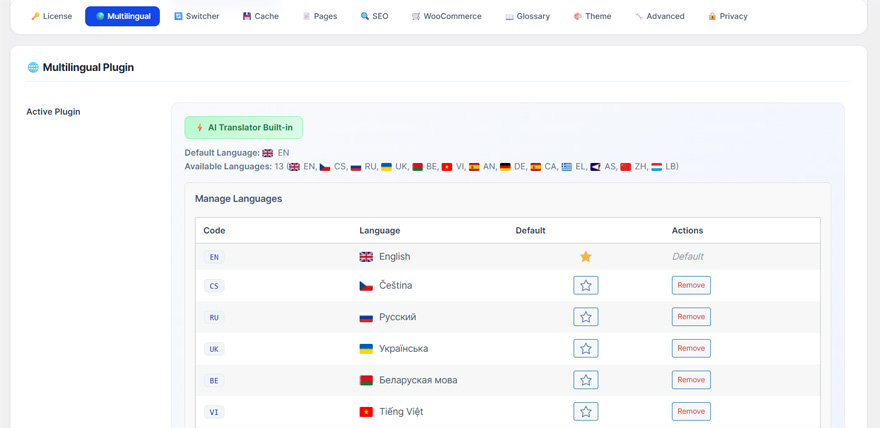
Language management settings — configure your site languages. 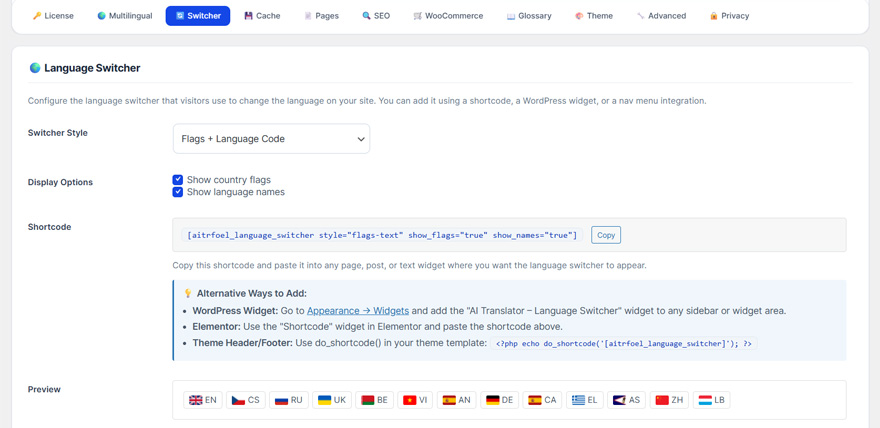
Language switcher settings — customize the frontend language switcher. 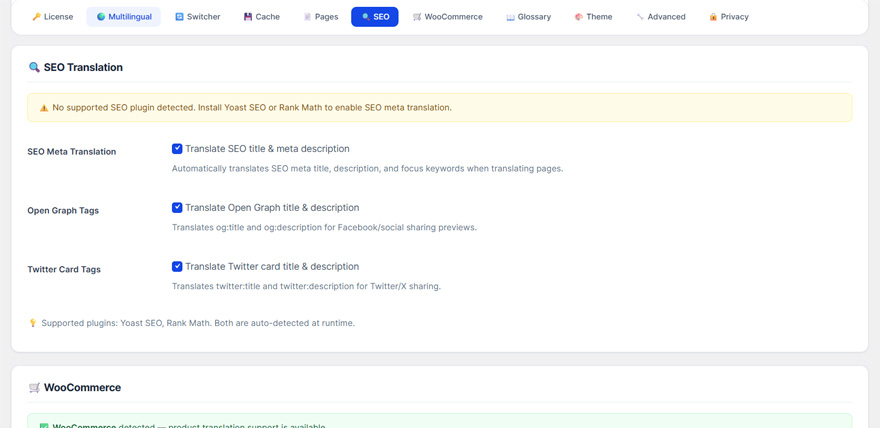
SEO translation settings — translate meta titles, descriptions, and slugs. 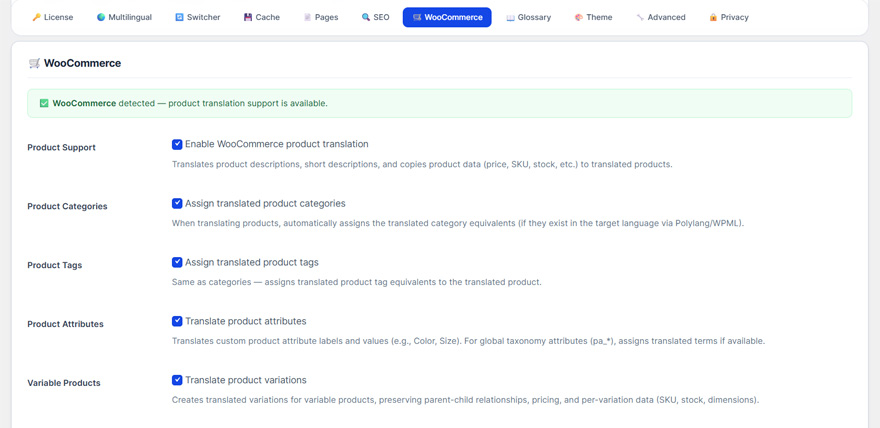
WooCommerce settings — configure product translation options.
Installation
- Upload the plugin folder to
/wp-content/plugins/or install via the WordPress Plugins screen. - Activate the plugin through the ‘Plugins’ screen in WordPress.
- Choose your language setup option:
- Built-in (Recommended): Use the plugin’s built-in language system — no extra plugins needed
- Polylang: Go to Languages Languages tab Add your languages
- WPML: Go to WPML Languages Add languages and configure
- Navigate to AI Translator in your WordPress menu.
- Start translating your pages, posts, and WooCommerce products!
FAQ
-
How do I translate Elementor pages without breaking the layout?
-
Meep AI Translator reads Elementor’s internal JSON structure directly instead of treating your page as plain text. This means every widget, column, heading, and button stays exactly where you placed it after translation. No broken sections, no collapsed widgets, no manual CSS fixes needed.
-
Can I translate a WordPress site without Polylang or WPML?
-
Yes. Since v1.3.0, Meep AI Translator includes a fully built-in language management system. You can add languages, configure URL prefixes (/fr/, /de/), and get a language switcher widget — all without installing any additional plugins. Polylang and WPML are still supported if you prefer them.
-
How do I add multiple languages to WooCommerce?
-
Install Meep AI Translator, choose Built-in language system during setup, add your target languages, then go to the Products tab in the dashboard. Select the products you want to translate, choose target languages, and click Translate. Product titles, descriptions, attributes, variations, and gallery alt text are all translated automatically.
-
Does Elementor translation work with dynamic widgets?
-
Meep AI Translator translates static Elementor content — text, headings, buttons, image captions, and any text stored inside Elementor’s JSON. Dynamic widgets that pull content from external sources or custom fields at runtime are skipped to avoid conflicts. Standard Elementor widgets are fully supported.
-
Does this work with Elementor Free or only Elementor Pro?
-
Both. Meep AI Translator works with Elementor free and Elementor Pro. No Pro license is required for translation to work.
-
Do I need my own OpenAI API key?
-
No. Translation is handled through our secure API — no setup, no API keys, no accounts with third-party services required. Just install and translate.
-
How many words can I translate for free?
-
The free version includes 1,800 words per week, which resets automatically every 7 days. There are no one-time limits — you can keep translating week after week on the free plan.
-
Does this require Polylang Pro?
-
No. It supports both Polylang free and Polylang Pro. And since v1.3.0, you don’t need Polylang at all — the built-in language system replaces it completely.
-
Will this modify my existing content?
-
No. Translations are created as separate pages or posts in the target language. Your original content remains completely unchanged.
-
How do I check how many words I have left?
-
Go to AI Translator Dashboard to see your current usage, words remaining, and weekly reset date.
समीक्षा


Contributors & Developers
“Meep AI Translator – Multilingual Elementor & WooCommerce” is open source software. The following people have contributed to this plugin.
Contributors
Translate “Meep AI Translator – Multilingual Elementor & WooCommerce” into your language.
Interested in development?
Browse the code, check out the SVN repository, or subscribe to the development log by RSS.